Ads 468x60px

Pages

Rabu, 18 September 2013

Canon Multi Pass Fax C855 waste tank reset code


Resetting the Waste Ink Volume Counter

1) Enter SERVICE MODE.....By pressing THEN #.
2) Select TEST MODE.
3) Select [8] PRINTER TEST in TEST MODE.
4) Select 3. [EEPROM CLEAR].
5) Select 0. [INK COUNT]. Let the printer complete its reset cycle (about 20 seconds).
6) Turn the printer off and on by unplugging the power cord and plugging it back in.
Read More..

Selasa, 17 September 2013

Canon MP110


step by step
Reset Printer Canon MP110

1. Enter SERVICE MODE By pressing Menu-Scan-Copy-Scan
2. Enter NVRAM by pressing <--- or ---> then OK
3. Enter CMY ink level by pressing <--- or ---> then OK
4. Select 1 by pressing <--- or ---> then OK
5. Enter K ink level by pressing ---> then OK
6. Select 1 by pressing <--- or ---> then OK
7. Press reset ( design: // )
Read More..

Resetter SP1390

Resetter SP1390


Resetter SP1390
Read More..

How to reset Brother DCP 195C printer


Does your Brother DCP model printer display an error like this?
clean unable 46
unable to print clean pad is full

Here is the proper reset code sequence to reset DCP printers without numeric keypad:

This instruction is also applicable to printer model: Brother DCP 110C, 115C, 120C, 130C, 135C, 145C, 150C, 165C, 185C

1. Press the Menu, then Mono Start key then press the UP arrow key 4 times to make the machine enter the maintenance mode and "ERROR 46" pops-up in the display.

2. Enter maintenance mode 80: Select 8 by pressing the UP/DOWN arrow key and push OK key and select 0 and push OK key

3. Now Press MONO arrow key several times until you see PURGE:XXXXX

4. Select 2 and push OK, Select 7 and push OK, 8 and push OK, select 3 and push OK and the purge counter is now reset to 00000.

5. Press STOP/EXIT key to go to root of maintenance mode

6. Enter code 99 to exit maintenance mode: Select 9 and push OK, Select 9 and push OK.
Read More..

Resetter Canon iP1600

Waste Ink Counter Reset.

Step 1 : Manual Temporary
1. Unplug power and USB.
2. Open door and hold power button.
3. Connect the printer cable.
4. Close door, then release power button.

step 2 : Software iP1600ServiceTool for Permanant
1. Open General Tools software
2. Select (USB PORT)
3 .Click DEVICE ID
4. Select EEPROM CLEAR
5. Click TEST PATTERN 1
6. Turn off the printer
Read More..

Senin, 16 September 2013

Service tool pixma ip2770 Resetter Pixma iP2270


steps reset canon pixma iP22700: 
 - Log on to the service mode first connect the printer to the computer and the power cord without turning
  on the printer (the printer is turned off). 
- Press the Resume button about 2 seconds and then press the POWER button until the green light on 
   (when pressing the POWER button, Resume button jgn removed) 
- Then off the RESUME button, but do not release the button POWER
-  While the POWER button still depressed, press the Resume button 5 times. Led will light turns green to
   orange last flame orange. (not to be mistaken 4x because the printer will die in total which means that the 
   steps we have to reinstall from scratch)
- Then release both buttons simultaneously, the LED will blink briefly then will flash GREEN.
- At this time the computer will detect a new device, just ignore it and wait until the process is complete.
- This situation shows the iP2770 printer is in a state of SERVICE MODE and ready to reset

for permanent service
  
1. Download Resetter
2. Exctract File Resetter iP2770. 
2. Service Tool ServiceTool_V1050


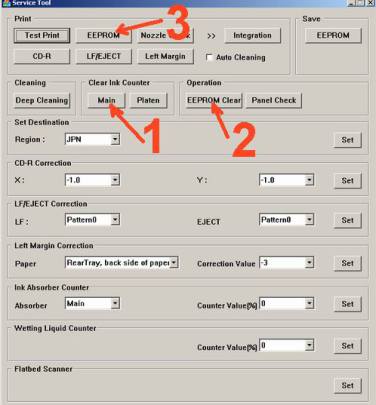
3. Click the "MAIN", then the printer will proceed, then iP2770 will print one page
    with the words "D = 000.0
4. Click "EEPROM Clear".
5. Then click "EEPROM", and the printer will print the results iP2770 Resetter. One line in his writings as 
    follows: "TPage (TTL = 00000)" 
5.  Turn off the printer by pressing the POWER button.
6. Up here if all goes well, its too printer will reset and is back Normal.
Read More..

ERROR CODE CANON MP145


Error Code :
E2-2 = No paper (ASF)
E3-3 = Paper jam
E4 = No ink
E5-5 = The ink cartridges are not installed or a non-supported ink cartridge is installed, or the ink cartridges are not installed properly
E8 = Waste ink absorber full, or platen waste ink absorber full
E9 = The connected digital camera / video camera does not support Camera Direct Printing
E14 = The Ink cartridges whose destination are wrong
E15 = Ink cartridge is not installed E16 - Ink remaining is unknown
E16 -E19 = Failed to scan head alignment sheet
E22 = Carriage error
E23 = Paper feed error
E24 = Purge unit error
E25 = ASF(cam) sensor error
E26 = Internal temperature rise error
E27 = Waste ink absorber full or platen waste ink absorber full
E28 = Ink cartridge temperature rise error -
E29 = EEPROM error
E33 = Paper feed position error
E35 15 = USB Host VBUD overcurrent error - USB
E37 17 = Abnormal motor driver error
E40 20 = Other hardware error
E42 22 = Scanner error
Read More..